Guide7 min read
Local AI server for a small office: what you actually need
Graphics memory, RAM, noise and how many people at once: what a local AI server for 5 to 30 people needs, and when to build, rent or buy one.
By the LionBox team
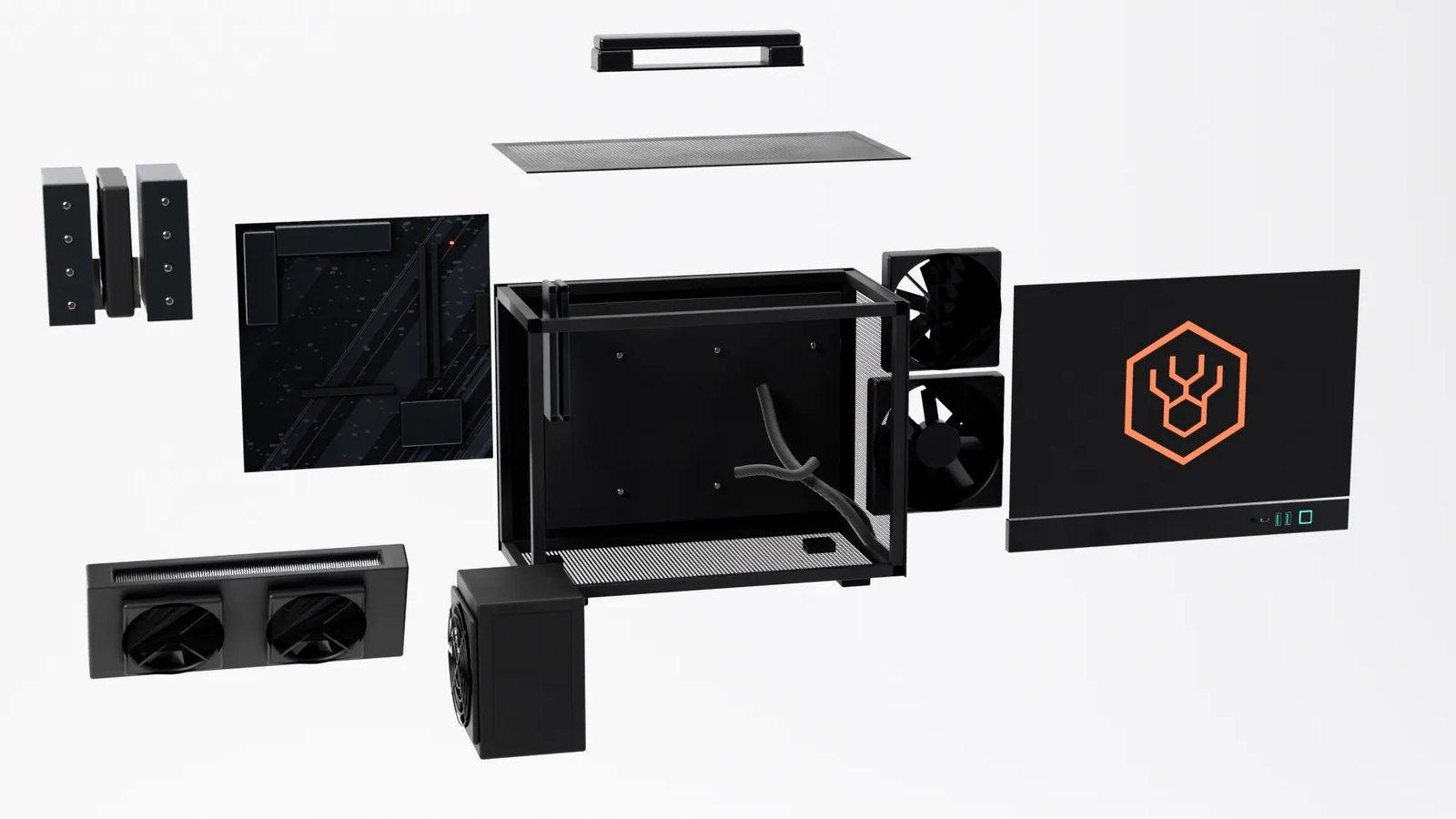
A local AI server is a computer in your office that runs an AI model for the whole team. People open it in the browser, ask questions, draft emails or search company documents, and the processing happens on that machine instead of at an outside AI service. For a team of 5 to 30 people it is usually one compact box, not a rack.
The hard part is knowing what that box needs. Hardware advice online is written for hobbyists chasing the biggest model or for data centres buying by the dozen. This guide is for a small office that wants a shared AI assistant that works every morning: what each part does, how to size it, and when to build or buy.
What a local AI server needs, part by part
Not every component matters equally. In order of importance:
| Part | What it does | What to look for |
|---|---|---|
| Graphics card (GPU) | Runs the AI model. Almost all of the AI work happens here. | A dedicated card with enough graphics memory for the model you want, plus room to spare. |
| Graphics memory (VRAM) | Holds the model and the conversations in progress. | The most important number on the spec sheet. More memory means a larger model or more people at once. |
| System memory (RAM) | Runs the operating system, document search and file processing. | Enough that documents and searches never wait. 32 GB is comfortable for a small team. |
| Storage (SSD) | Holds the models, your documents and their search index. | A fast SSD with space for several models and years of documents. |
| Network | Connects the server to everyone’s browser. | A cable to the office router. Laptops can stay on Wi-Fi. |
| Processor (CPU) | Coordinates everything else. | Matters less than you would expect. A current mid-range processor is fine. |
Why graphics memory decides what you can run
An AI model is, in practice, a very large file of learned numbers. To answer quickly, the whole model has to sit in the graphics card’s own memory. If it does not fit and spills over into the computer’s ordinary memory, answers become many times slower, too slow for a team to use.
The model is not the only thing in there. Each conversation in progress needs working space too, and long documents need more of it. That is why a card that can just about load a model is not enough for an office: it has to load the model and still serve several people at once.
Model size is counted in billions of parameters. As a rough guide for a shared office server:
| Model size | Typical hardware | Good for |
|---|---|---|
| Compact, up to about 10 billion parameters | One graphics card with 16 GB of memory | Drafting, summarising, translating, extracting data and answering from your documents |
| Medium, around 30 billion | One card with 24 to 32 GB, or two cards | More nuance on longer, more complex tasks |
| Large, 70 billion and more | Several professional cards | Harder reasoning, at many times the cost, power and noise |
| The largest cloud models | Racks of data-centre hardware | Not realistic to run in an office |
A rough guide, not a rule. The exact fit depends on the model, the software and how many people use it at the same moment.
The step from compact to large is not linear. Each size up multiplies the price of the hardware, its power draw and its noise, and the gain for everyday office work is smaller than the gain on hard puzzles. For most small teams a well-tuned compact model is the sensible choice.
How many people can share one server
A common mistake is to size for headcount. What counts is how many people press Send in the same moment. In a team of 20, most people are reading, writing or in a meeting at any given second, and only a few requests overlap. A good server takes turns so quickly that nobody notices.
Count the people who will use it
Not the whole company: the people whose work involves writing, reading or searching documents.
Estimate the busy moments
Monday morning, the hour before a deadline. Ask how many of those people would plausibly use the assistant in the same minute.
List the heavy tasks
Reading long reports, transcribing recordings and processing scans take more work than a short question. If they are daily, size up.
Test with your own work
Before you buy, try the tasks your team actually does, ideally with several people at once.
An office, not a server room
A local AI server for a small team stands where people work, so three things matter that data-centre guides ignore:
- Noise. A graphics card under load needs cooling. Check the noise level in decibels and where the box can stand. A shelf with free airflow beats a closed cupboard.
- Power and heat. Average power use decides the electricity bill and how warm the corner gets. Ask for the average, not just the maximum.
- Space and cables. One power socket and one network cable to the router are all it should need. No rack, no dedicated cooling.
Build it, rent it or buy it ready
There are three ways to get a local AI server, and the hardware is the smallest difference between them.
Build it yourself
- Choose graphics card, memory and case
- Assemble, install the operating system and drivers
- Install and tune the model and chat software
- Set up accounts, access and secure connections
- Keep models, drivers and security updates current
Lowest price for parts and the most hours. Needs someone comfortable with Linux and graphics drivers, and it stays theirs to fix.
Rent a GPU server
- Choose a provider and a region
- Set up the server and secure access
- Install and maintain the software
- Pay every month
No hardware in the office, but prompts and documents travel to that data centre, so the questions you had about cloud AI come back.
Buy a ready-made box
- Connect power and network
- Follow the setup app
- Add your team
Least effort. Hardware and software are chosen and tested together. You accept the maker’s choice of parts and models.
The build is a weekend. The upkeep is every month: new model versions, driver updates, security patches, user accounts, the day it does not start. If nobody in the company wants that job, the cheapest parts are not the cheapest server.
What we chose for LionBox
LionBox V1 is our on-premise AI server for teams of 1 to 30, built on the reasoning above. The current configuration:
- Graphics card: a dedicated NVIDIA GPU
- Memory: 32 GB RAM
- Storage: 512 GB SSD
- Average power: ~100 W
- Noise level: 39 dB
It runs LionBox 9B, our own build of a compact 9B model, tuned for this card so the whole team can share it. In our benchmarks, each active user gets text roughly eight times faster than average reading speed. Results depend on the workload and concurrent use. Setup is power, a network cable and the mobile app; how it works shows what happens inside. The Founders Edition is €2,199 plus VAT; the AI server price page has the details.
The limits, said plainly: a compact model does not match the largest cloud models on very complex tasks. If your work needs that level of reasoning every day, a box this size is not the right tool. Before you decide, tell us about the tasks you have in mind.
Questions to ask before you buy any local AI server
- How much graphics memory does it have, and which model sizes does it run for several people at once?
- How many people can use it at the same moment, and how was that measured?
- What keeps working with the internet disconnected?
- Who updates the models and the software, and what does that cost after the first year?
- What are the average power use and the noise level, and where can it stand?
- What does the warranty cover, and what happens to the data drive during a repair?
Short answers
Can a normal office PC run a local AI?
Most office PCs have no dedicated graphics card with enough memory. They can run a very small model slowly for one person, not a shared assistant for a team.
Do we need a server room?
Not for a compact box. It needs a power socket, a network cable to the router and free airflow.
How many people can share one local AI server?
It depends on how many use it in the same moment and on the tasks. A compact model on one dedicated graphics card can serve a small team; test with your own work before you buy.
Is a local model as good as cloud AI?
Not on the hardest tasks. For everyday office work, such as drafting, summarising and answering from your documents, a compact model does well, and your content does not need to go to an outside AI service.